
Table of Contents
Record a meeting in Microsoft Teams #
- Any Teams meeting or call can be recorded for future viewing. The recording captures audio, video, and screen sharing activity, and you can share it securely across your organization.
- A recording will expire and be automatically deleted after a set period of time. The length of time it’s available is set by your admin, but you can change the expiration date of any given recording. For more info, see Manage the expiration of a meeting recording.
Start recording #
- When you start recording a meeting, you also turn on live transcriptions (if your IT admin allows transcriptions).
- Start or join the meeting.
- In your meeting controls, select More actions
 > Record and transcribe
  > Start recording Everyone in the meeting will be notified that recording and transcription have started.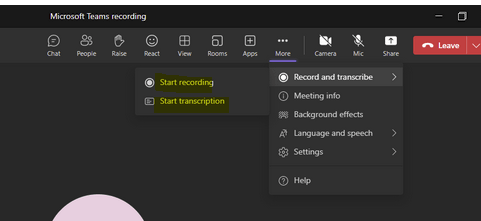
Stop recording #
- In the meeting controls, select More actions
 > Record and transcribe .
 - Choose one of the following:
Find recordings #
- Recordings are available in different places depending on the type of meeting.
- The recording is processed and saved in the meeting organizer’s OneDrive
- The meeting recording shows up in the meeting chat or channel conversation (if you’re meeting in a channel).
Who can start or stop a recording? #
- Anyone who meets the following criteria can start or stop a recording, even if the meeting organizer isn’t present, as long as the meeting organizer has their cloud recording policy setting turned on.
- Has one of the following licenses: Office 365 Enterprise E1, E3, E5, F3, A1, A3, A5, M365 Business, Business Premium, or Business Essentials, Education.
- Has recording enabled by an IT admin.
- Isn’t a guest or from another organization.
- The user must be assigned the Teams Communications Support Specialist or Teams Communications Support Engineer role.
- The user must have enough storage space in OneDrive or SharePoint to save the recording.
- The user must have the AllowCloudRecording parameter set to True in the meeting policy.


